How to Convert MD Files: PDF, Word & HTML Guide
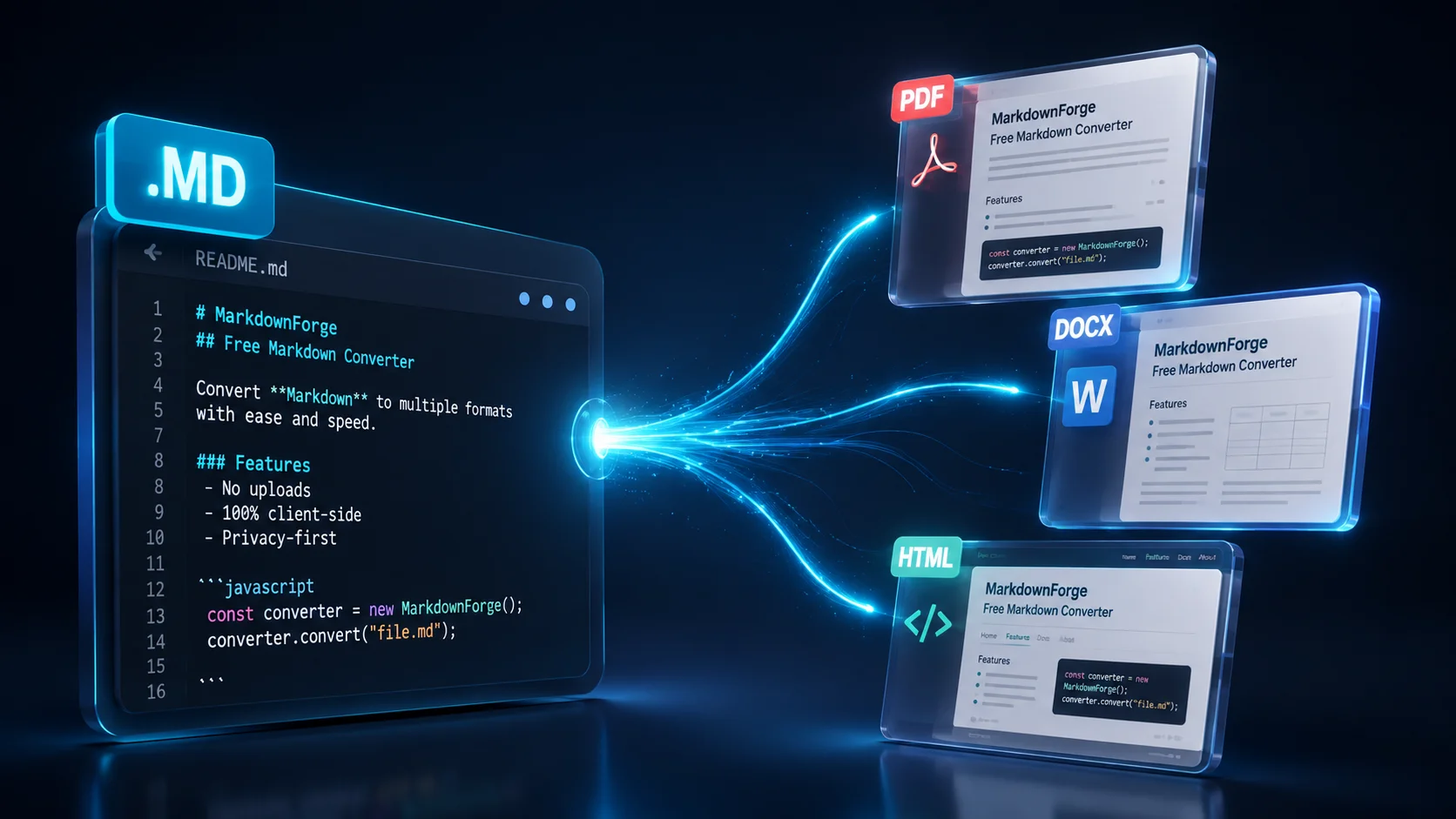
If you've ever emailed a .md file to a client, a manager, or anyone who isn't a developer, you've probably gotten the same reply: "This just looks like code — can you send a real document?" Markdown is fantastic for writing, but it's not built for reading outside a code editor or a Git repo. The fix is simple: convert the file into a format people actually expect.
This guide covers every practical way to convert markdown into a readable file — PDF, Word (DOCX), or HTML — whether you want a quick online tool, a command-line workflow, or a VS Code extension you can use daily. It also covers the reverse direction, for when you're pulling into Markdown instead of out of it.
Quick Answer
To convert .md to readable formats fast, use a dedicated online converter (upload and download in seconds), the pandoc command line tool for batch or scripted jobs, or a VS Code extension like Markdown PDF if you already write in VS Code. Below is a fast-reference table before we go step by step.
| Output Format | Fastest Method | Best For |
|---|---|---|
Online converter or pandoc file.md -o file.pdf |
Sharing with clients, printing | |
| Word (.docx) | Online converter or pandoc file.md -o file.docx |
Editable, track-changes workflows |
| HTML | pandoc file.md -o file.html or static site generator |
Publishing to the web |
| Quick preview | VS Code built-in preview (Ctrl+Shift+V) | Reading before you export |
What Are .md Files, and Why Convert Them to a Readable Format?
A .md file is a Markdown document — plain text with lightweight formatting symbols like # for headings, **bold** for emphasis, and - for bullet lists. Developers love it because it's fast to write, easy to version-control in Git, and renders cleanly on platforms like GitHub. The problem is that outside of those platforms, a raw .md file just shows the symbols instead of the formatting — asterisks, pound signs, and dashes cluttering what should be clean text.
That's exactly why you need to convert .md to readable output before sharing it with anyone outside a technical workflow. A converted PDF or Word file preserves your headings, bold text, tables, and code blocks, but displays them the way a normal reader expects: styled, formatted, and free of raw syntax.
Before / after, side by side:
markdown
# Q3 Rollout Plan

## Scope
The **beta** release covers three regions:

- North America
- EU (excluding UK)
- APAC

> Note: legal sign-off is *pending* for APAC.
Rendered, that same source becomes a styled heading, a bolded word, a real bullet list, and a visually distinct blockquote — no stray # or ** characters left for the reader to mentally filter out. That transformation is the entire job of a converter.
Common reasons people convert Markdown:
- Client delivery — proposals, reports, or documentation written in Markdown but shared as polished PDFs
- Print-ready documents — resumes, manuals, or contracts that need to be printed or archived
- Editable collaboration — turning notes into a Word doc so non-technical teammates can comment and edit
- Publishing — converting Markdown to HTML for a blog, wiki, or static website
How to Convert .md Files to PDF and Word (DOCX): Step-by-Step
There are two realistic paths here: a browser-based tool for one-off conversions, or command-line software for anyone doing this repeatedly.
Method 1: Online Converters
For most people, an online converter is the fastest route. You upload the .md file, the tool renders the formatting, and you download a finished PDF or DOCX — no installation required.
Pros:
- No software to install
- Works from any device, including tablets and Chromebooks
- Usually free for standard file sizes
- Good for one-off or occasional conversions
Cons:
- Requires an internet connection
- Large or highly complex files (heavy tables, embedded images) can lose some formatting
- Sensitive documents may raise privacy concerns depending on the service
If your Markdown includes tables, images, or code blocks, always preview the output before sending it along — formatting edge cases are the most common thing that breaks in automated conversion.
Method 2: Command Line / Dedicated Software (Pandoc)
If you convert Markdown regularly — as part of a documentation pipeline, a build script, or a daily writing habit — the command line is worth the five minutes it takes to set up. Pandoc is the standard tool here: it's free, open-source, and converts between dozens of formats, not just Markdown.
Install Pandoc (one-time setup):
bash
# macOS
brew install pandoc

# Windows (with Chocolatey)
choco install pandoc

# Ubuntu/Debian
sudo apt-get install pandoc
Convert to Word (.docx):
bash
pandoc report.md -o report.docx
Sample verbose run, so you know what a healthy conversion actually looks like on the wire:
$ pandoc report.md -o report.docx --verbose
[INFO] Loading reference.docx from user data directory
[INFO] Reading markdown from report.md
[INFO] Parsed 4 headings, 1 table, 2 code blocks
[INFO] Writing docx output
[INFO] Wrote report.docx (18.2 KB) in 0.34s
Convert to HTML:
bash
pandoc report.md -o report.html
Pandoc reads standard Markdown syntax and maps it directly to native formatting in the output — headings become Word heading styles, tables become real tables, and code blocks keep their monospace formatting. For batch jobs, you can loop this command across an entire folder of .md files in a single script.
Getting PDF Output Right: Choosing a --pdf-engine
This is the part most guides get wrong, and it's worth doing correctly the first time. Pandoc doesn't render PDFs itself — it hands the job to an external engine via the --pdf-engine flag, and the right choice depends on how much typesetting control you need:
| Category | Engines | Best For |
|---|---|---|
| Modern & fast | typst |
New projects — near-LaTeX quality output at a fraction of the compile time |
| CSS/print-based | weasyprint, wkhtmltopdf, prince, pagedjs-cli |
Web-style layouts, anyone who thinks in CSS rather than typesetting markup |
| Full typesetting/academic | xelatex, pdflatex, lualatex, tectonic |
Citations, complex math, footnotes, academic papers |
Note that weasyprint and wkhtmltopdf are HTML/CSS rendering engines, not LaTeX engines — they turn Pandoc's intermediate HTML into a PDF using a browser-style layout model, which is why they're the right pick if you want to style your export with plain CSS instead of learning LaTeX syntax.
bash
# Fast, modern typesetting
pandoc report.md -o report.pdf --pdf-engine=typst

# CSS-driven PDF (good for custom @page styling)
pandoc report.md -o report.pdf --pdf-engine=weasyprint

# Full LaTeX typesetting (citations, complex math)
pandoc report.md -o report.pdf --pdf-engine=xelatex
If you don't specify an engine, Pandoc picks a sensible default based on your output format, but for anything beyond a plain document it's worth choosing deliberately — see the Typst documentation if you're evaluating it as your default.
Styling Word Output with a Custom Reference Template
By default, pandoc report.md -o report.docx produces a plain, generic-looking Word file. To match your company's letterhead, fonts, or heading styles, use a reference document — an existing .docx file whose styles Pandoc copies into the output while ignoring its actual content.
- Generate Pandoc's default reference file as a starting point:
bash
pandoc -o custom-style.docx --print-default-data-file reference.docx
- Open
custom-style.docxin Microsoft Word and edit the built-in styles (Title, Heading 1, Heading 2, Normal, Quote, Code Block) using Word's Styles pane — don't apply manual formatting directly to the sample text. - Save the file, then reference it on every future conversion:
bash
pandoc report.md -o report.docx --reference-doc=custom-style.docx
Every heading, quote, and code block in your Markdown now inherits your brand's styling automatically, with zero manual reformatting in Word afterward.
How to Convert a .md File to PDF/DOCX in VS Code (Step-by-Step)
If you already write your Markdown in Visual Studio Code, you don't need to leave the editor at all. Two popular extensions handle this well: Markdown PDF (simplest, PDF/HTML/image export) and Markdown Preview Enhanced (more customization, including DOCX via Pandoc integration).
Using the Markdown PDF Extension
- Open the Extensions panel in VS Code (
Ctrl+Shift+Xon Windows/Linux,Cmd+Shift+Xon Mac). - Search for "Markdown PDF" (by yzane) and click Install.
- Open the
.mdfile you want to convert. - Open the Command Palette (
Ctrl+Shift+PorCmd+Shift+P). - Type and select Markdown PDF: Export (pdf).
- The PDF is generated automatically in the same folder as your source file.
The same extension also supports exporting to HTML, PNG, and JPEG from that same command menu.
Using Markdown Preview Enhanced (for more control)
- Install Markdown Preview Enhanced from the Extensions panel.
- Open your
.mdfile and launch the preview (Ctrl+K V). - Right-click inside the preview pane and choose Chrome (Puppeteer) → PDF, or Pandoc → Word if you have Pandoc installed.
- Adjust the export settings (margins, page size, styling) in the extension's configuration if the default output needs tweaking.
Converting Markdown to HTML and Web-Ready Formats
Sometimes "readable" doesn't mean a document at all — it means a web page. Converting markdown to html is common when you're publishing a blog post, populating a documentation site, or embedding content into an existing web app.
bash
pandoc article.md -o article.html --standalone
The --standalone flag wraps your content in a complete HTML document rather than just the inner content — important if you're opening the file directly in a browser rather than injecting it into an existing template.
Automating PDF Export with Node.js + Puppeteer
For teams that want print-quality PDFs with full CSS control (running headers, page numbers, custom @page margins) rather than relying on a fixed engine, a small Puppeteer script sitting after your pandoc ... -o article.html step gives you full control:
javascript
// render-pdf.js — pairs with: pandoc article.md -o article.html --standalone
const puppeteer = require('puppeteer');
const path = require('path');

(async () => {
  const browser = await puppeteer.launch();
  const page = await browser.newPage();
  const filePath = path.resolve('article.html');

  await page.goto(`file://${filePath}`, { waitUntil: 'networkidle0' });

  await page.pdf({
    path: 'article.pdf',
    format: 'A4',
    printBackground: true,
    margin: { top: '2cm', bottom: '2cm', left: '1.5cm', right: '1.5cm' },
    displayHeaderFooter: true,
    headerTemplate: `<div style="font-size:9px; width:100%; text-align:center;"></div>`,
    footerTemplate: `<div style="font-size:9px; width:100%; text-align:center;">
                       Page <span class="pageNumber"></span> of <span class="totalPages"></span>
                     </div>`,
  });

  await browser.close();
  console.log('article.pdf generated');
})();
Pair that with a print stylesheet controlling page breaks:
css
/* print.css */
@page {
  size: A4;
  margin: 2cm 1.5cm;
}
h1, h2 { page-break-after: avoid; }
pre, table { page-break-inside: avoid; }
This is effectively what a "CSS/print-based" pdf-engine like weasyprint does internally — the Node.js version just gives you a scriptable hook if you're already running a build pipeline in JavaScript.
For ongoing publishing workflows, most teams skip manual, single-file conversion entirely and use a static site generator (Jekyll, Hugo, Astro, Next.js with MDX) that converts .md files to HTML automatically at build time.
Top Recommended Tools for MD Conversion
| Tool | Supported Output Formats | Best For | Price |
|---|---|---|---|
| Pandoc | PDF, DOCX, HTML, EPUB, and more | Developers, batch conversion, scripting | Free |
| VS Code + Markdown PDF | PDF, HTML, PNG, JPEG | Writers already working in VS Code | Free |
| VS Code + Markdown Preview Enhanced | PDF, DOCX (via Pandoc), HTML | Custom styling and page layout | Free |
| Node.js + Puppeteer | PDF (with full CSS control) | Automated build pipelines, custom headers/footers | Free |
| Static site generators | HTML | Publishing blogs and documentation sites | Free (self-hosted) |
Going the Other Direction: Converting Documents Into Clean Markdown
Everything above covers exporting out of Markdown. But a large share of documentation and LLM-prep work runs the opposite way: you've got a legacy PDF, a Word doc, or a scraped web page, and you need clean, structured Markdown out of it — for a docs migration, a RAG pipeline, or feeding content to an AI model that reads Markdown far better than it reads raw HTML or DOCX XML.
For that direction, skip the CLI setup entirely and use md-convert.org's browser-only converters — files are processed client-side with zero server upload, which matters if the source documents are internal or client-confidential:
- PDF to Markdown — strips layout noise and headers/footers, keeps heading hierarchy and tables intact
- HTML to Markdown — turns a saved web page or CMS export into clean, portable Markdown
- DOCX to Markdown — converts Word documents while preserving headings, lists, and basic formatting
If you're building a documentation pipeline, it's common to run both directions in the same project: pull legacy content in as Markdown with these tools, edit and version it in Git, then export it back out with Pandoc or VS Code when it's time to deliver a client-ready PDF or Word file.
Frequently Asked Questions
How do I convert .md to docx?
Use Pandoc with pandoc file.md -o file.docx, or upload the file to an online MD-to-Word converter if you'd rather skip the command line. Add --reference-doc=custom-style.docx if you want the output to match a specific Word template rather than Pandoc's plain default styling.
What is the best way to make a .md file readable?
For occasional use, an online converter is the fastest way to make a .md file readable — upload it, choose PDF or DOCX, and download. For frequent conversions, install Pandoc or a VS Code extension like Markdown PDF so the process becomes a single command or click.
Can I convert Markdown files online for free?
Yes. Most dedicated Markdown converters offer free conversion for standard file sizes, covering PDF, Word, and HTML output. Paid tiers usually only come into play for very large files, batch uploads, or advanced formatting options like custom templates.
How do I open and convert .md files on Windows or Mac?
On either system, .md files open as plain text in any text editor (Notepad, TextEdit) or, better, in a Markdown-aware editor like VS Code, which renders formatting in a live preview. To convert, use an online tool, install Pandoc via the command line, or add a VS Code export extension — all three methods work identically on Windows and Mac.
Which Pandoc PDF engine should I use?
Use typst for fast, modern output on new projects; weasyprint or wkhtmltopdf if you want to control layout with plain CSS; and xelatex or lualatex if you need academic-grade typesetting with citations, footnotes, or complex math.
Conclusion
Markdown is a great writing format, but it isn't a great reading format for anyone outside your editor. The good news is that converting it takes minutes, not hours: grab an online converter for a one-off PDF or Word file, install Pandoc if you're doing this regularly or scripting a pipeline, or add a VS Code extension if you want export baked into your daily workflow. And when the content needs to flow the other way — legacy PDFs, Word docs, or web pages coming into Markdown — md-convert.org's browser-only converters handle that side of the pipeline without ever uploading your files to a server.